COMMON SOFTWARE PROBLEMS

Common Software problems and solutions

There are numerous computer software issues that are elementary to fix, but hard to diagnose. When you successfully identify the appropriate problem, it becomes easy to iron out the pitfall. Now, let’s share the common software problems and solutions according to experience.

Viruses

It is a very generic problem with your computer. Your computer gets this problem by merely visiting a website. Some of the symptoms of PC viruses are strange behavior in the OS, non-responsive applications and slow performance.

However, do not get scared because the solution to this problem is not hard. You can install antivirus program in your computer to get rid of this problem.detected computer software virusMalware

It is another generic problem that infects your computer. Malware means malicious software. Worms and Trojan Horses are some of the examples of common malware. Malware often enters your computer via mail attachments.

It is really difficult to free your computer from malware. It is always suggested that you do a system restore and reinstall your operating system. You can go for program such as Malwarebytes Anti-Malware for less powerful malware.

RESURRECTION OF DEAD PC, NOISY PC, LIQUID SPILLED ON PC

  • Laptop’s dead

The laptop does not turn on at all no matter what you do. There are several possible scenarios that may lead to this outcome including the battery draining completely because of a malfunctioning AC adapter. Maybe the DC jack has to be replaced because it makes no contact with the motherboard. The worst scenario by far is the one with the failed motherboard. If that is the case, just go and buy yourself a new laptop.

  • Noisy Computer   

It means that the computer system is making noise while running. The reason of Noisy Computer is Dirty Fan. The dust particles sticks on the Fan including the Heat Sink and other parts such as Motherboard and other electrical parts of computer .This dust Blocks the smooth action of Fan and causing the fan to make noise.Clean your system completely by removing motherboard from its place and also clean the Fan and Heat sink with a brush or soft cloth.solve problem of noisy computer

  • Liquid spilled on laptop

For some careless guys, it’s easy to spill something on the laptop and it’s stopped working. Liquid spills are very dangerous and unpredictable. If it happened, turn off the laptop ASAP, remove the battery and do not use it until all internal parts are inspected for liquid damage. It’s still possible the laptop will work again after you clean the damage. cleaning Liquid spilled on laptop


RAM FAULTS

RAM Faults and Errors

Whenever RAM fault occurs your monitor shows a blue screen with a memory reference like x000xxxx as a boot interruption. RAM faults cannot be prevented but you can fix them. There may be frequent PC restarts. This is due to faulty RAM chips. These Faulty RAM chips are unable to store the boot loader or NT loader file therefore the OS cannot find it and hence it shuts down all the processes, due to non-availability of the boot loader file in the RAM as a result the PC restarts again and again.

This problem can be fixed by replacing the old RAM with a new one. You must know the model compatibility of you motherboard before buying a new RAM. It may be DDR, DDR2 or DDR3. Just do it!replacing the old RAM with a new one

EXPERIENCING BLUE SCREEN ERRORS

System Error Blue Screen

Often it is seen that a blue screen appears suddenly while you are working or when you start your computer. This is usually due to either a hardware failure or a driver problem. Reinstalling the driver or correcting the hardware problem can help to solve the issue. If nothing seems to work, you should consider backing up and re-formatting your Hard Drive, then reinstalling your operating system.

COMPUTER FREEZES

Computer Freeze

Heat is the measure Reason for PC hardware problems. Ensure if it’s computer freeze or lockup. Generally, your computer temperature is controlled by the internal fan called the Heat Sink. Dust is another enemy of PC hardware as it sticks on motherboard and electrical components. You can control overheating by removing dust from around the internal fan.

WHEN YOUR COMPUTER IS SLOW

My computer is too slow

The first step to fixing a slow computer is to verify that your machine is the actual source of the problem. Videos that seem to buffer forever, and websites that take ages to load, may not be your computer’s fault. Geek Squad agent Derek Meister claims that many people mistakenly identify a slow system as the problem when “it’s actually not the computer, [but] their broadband connection.” See “Downloads are taking forever” below for instructions on how to use Speedtest.net to diagnose a slow connection.

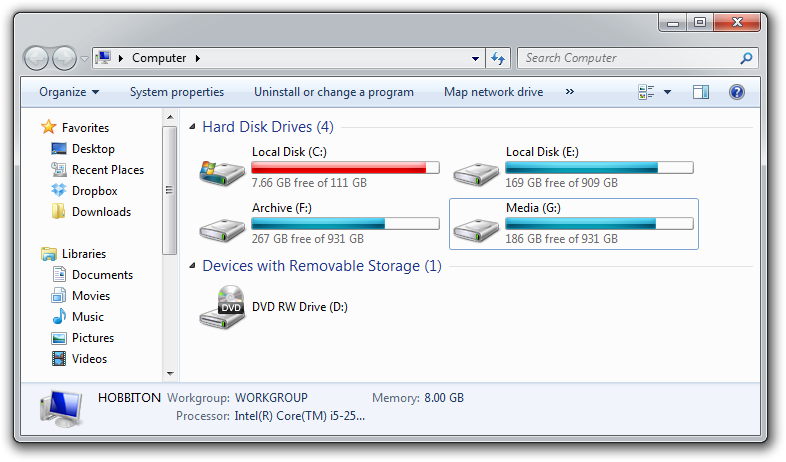
If the problem is your PC, check whether you have plenty of free space on the hard drive holding your operating system. Windows needs room to create files while your system is running. If your hard drive is maxed out, performance suffers. Now is the perfect time to clear some space.

If your computer’s operating system resides on an overstuffed C: drive, clearing out some space could boost OS performance.

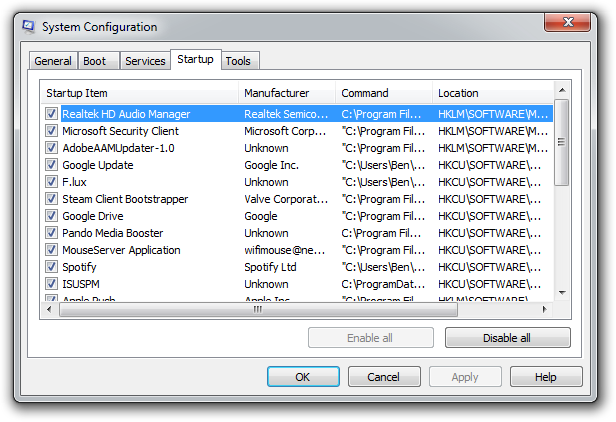
Microsoft’s System Configuration tool is your next-best bet for tackling slow performance. Many applications launch automatically when your machine boots up, which can stretch out boot time—especially on older, slower PCs. Make a habit of trimming the startup items. Open the tool by pressing Windows-R, typing msconfig, and pressing the Enter key.

Checking the Startup Item and Manufacturer columns is the best way to figure out which potential performance-killers you can safely disable. Avoid messing with any of the services and programs that have Microsoft Corporation listed as the manufacturer. Items such as AdobeAAMUpdater, Google Update, Pando Media Booster, Spotify, and Steam Client Bootstrapper are all fair game. Regardless, err on the side of caution: If you’re not sure what the program or service does, don’t disable it.

Windows’ System Configuration Tool lets you disable programs and services that automatically start when you boot your computer.

Once you’ve made all your changes, click OK and restart the computer. It should boot up quicker and feel noticeably faster.

Design a site like this with WordPress.com
Get started